Connect a provider
Choose a provider and connect the account you want to use.
Connections manages provider sessions. Your terminal login and provider credentials are separate; signing in to the terminal does not connect a trading account automatically.
Open and connect
- Click the person icon at the upper right, beside the application gear. Signed-out sessions open Connections directly; signed-in sessions show an account menu where you choose Connections.
- Select the provider in the left list. Its fields appear on the right; the ? beside its name opens provider-specific instructions.
- Sign in through the Login row at the bottom when needed. Creating or removing a provider connection requires terminal sign-in.
- Choose Live, enter the required provider credentials, and click Connect. Wait for the connection result, then check the account and listing in the panel you intend to use.

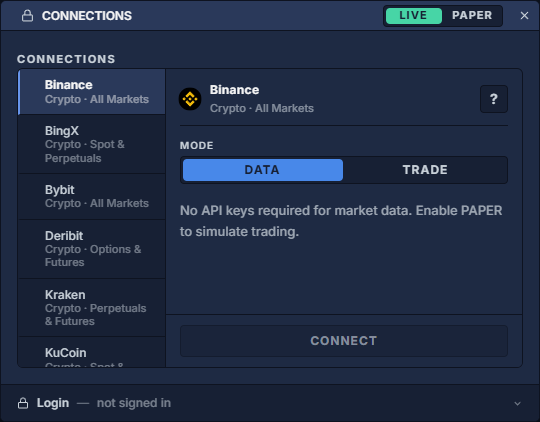
Fields differ by provider: a key, secret, token, passphrase or account identifier may be required. The screenshot leaves credentials blank. Enter them only in the designated fields; API keys and storage explains storage.
Accounts, modes and disconnection
For a provider with multiple connections, use its connection selector to select the account or create another connection. Verify this choice before trading.
Live / Paper is at the dialog's upper right. Disconnect existing provider sessions before changing modes. Paper trading: practice a cash-account workflow explains the supported simulator and its setup.
To disconnect, select the provider and existing connection, then click Disconnect. Disconnecting does not cancel orders held at the provider. Select and link instruments explains choosing the correct listing.