Trading sidebar: sizing, protection and strategies
Use the shared sidebar, configure stop orders and brackets, and monitor execution strategies.
Chart, Orderbook, DOMTrader and SmartDOM share a trading sidebar. It follows the panel’s selected instrument and connection. In DOMTrader, click the small sidebar icon at the far right of the second row, beside the padlock. In the other hosts, use the rightmost order-entry toggle in their panel toolbar. This example shows the controls with an illustrative simulated account; no order was sent.
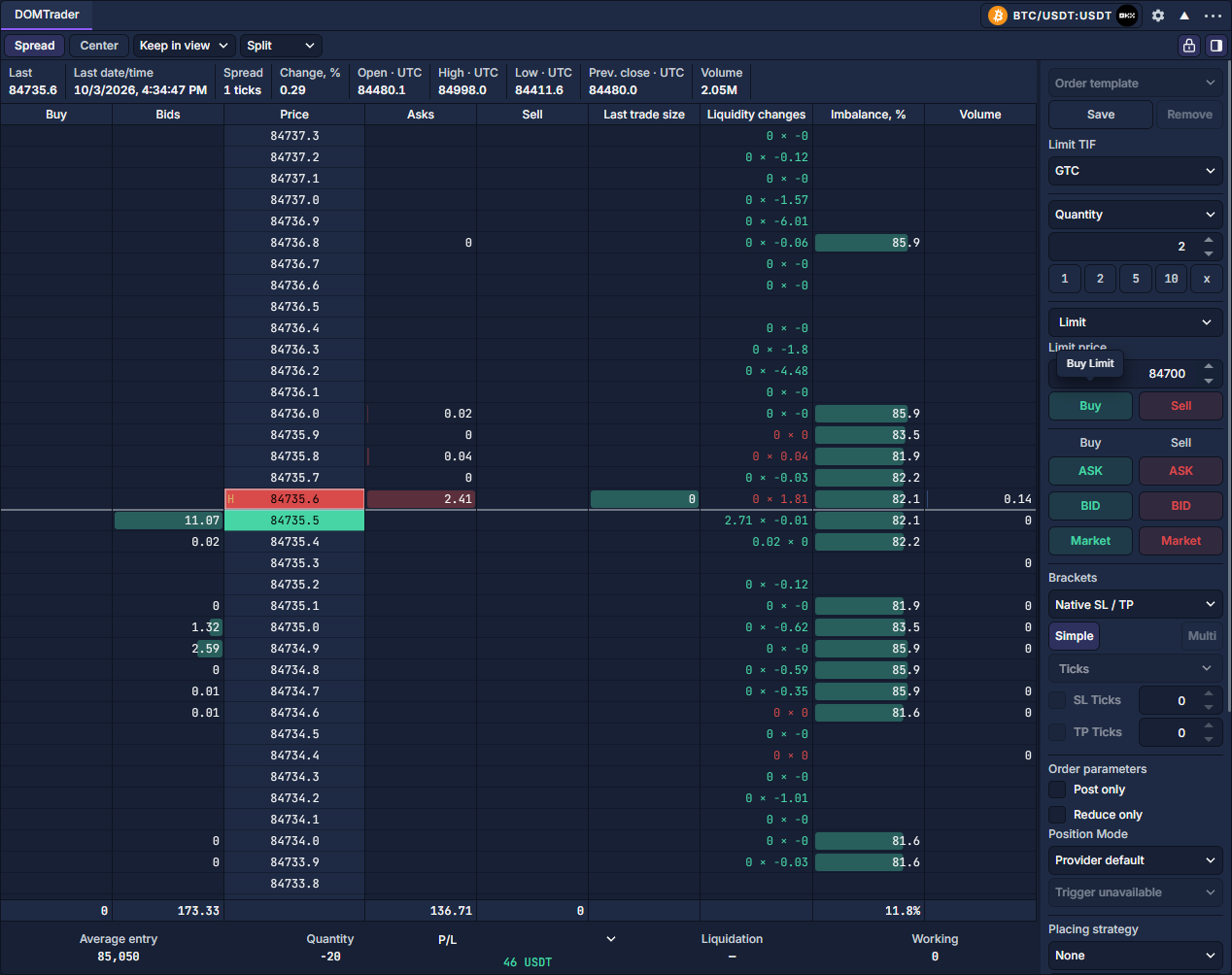
Set quantity and a direct order
- Choose the quantity mode above the amount: native Quantity, Base quantity, Total in quote currency, or Available cash % where supported. Contracts, base exposure and quote notional are different units. Cash-percent sizing needs a fresh supported balance and a percentage above zero and at most 100.
- Enter the amount. Quick buttons such as 1, 2, 5, 10 set it; x restores the default. Settings accepts semicolon-separated buttons and separate rows, including arithmetic such as
+1,*2and/2. - Select Market, Limit, Stop market or Stop limit. Limit types need a Limit price; stop types also need a Trigger price and Exchange stop or Local stop. A local stop uses last trades and requires the terminal to keep running.
- Set Limit TIF and review Order parameters. Click the Buy/Sell button beneath the type fields to prepare that order. The separate ASK / BID / Market matrix uses the named quote or a market order; the column identifies Buy versus Sell. Review the confirmation before submitting.
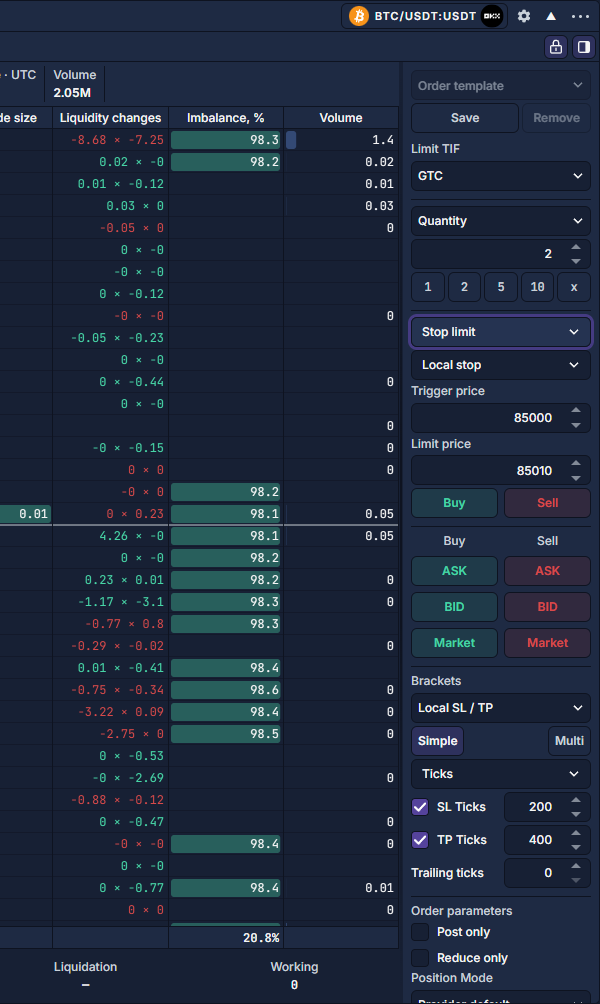
Order parameters and saved choices
Post only requests a passive limit; Reduce only limits the order to reducing a position. Market TIF governs market and stop-market orders separately from Limit TIF. The position-mode and hedge-side fields are order instructions, not a switch for the exchange account’s position mode. Existing positions and working orders constrain the selection. Exchange trigger sources depend on provider support. A disabled control’s tooltip explains its current requirement.
Configure brackets and trailing protection
In Brackets, choose Native SL / TP for supported provider attachments or Local SL / TP for terminal-managed exits. Simple supports ticks, percent or absolute price. Changing the unit resets SL/TP values, so enter and review them again. Zero disables the corresponding exit; trailing distance requires an initial stop loss.
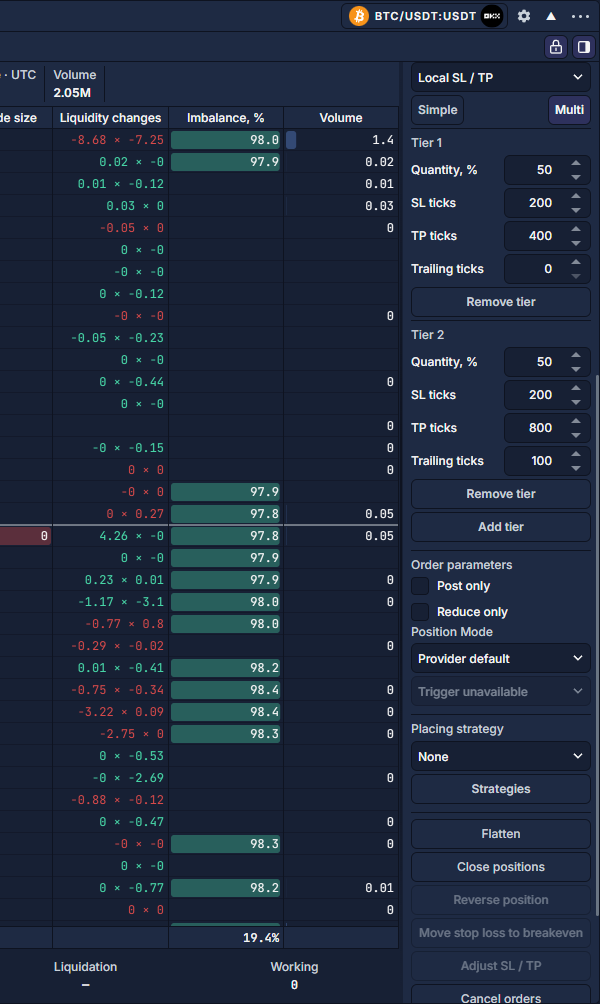
- Choose Local SL / TP → Multi to divide the entry into protection tiers. Add tier / Remove tier changes the list, up to eight tiers.
- Set Quantity, % so the allocations total 100 and can be represented in the instrument’s lot step. Enter SL ticks, TP ticks and optional trailing ticks for each tier. Multi-tier distances are in native ticks.
- The example divides two native units 50/50, with a 200-tick stop on each part and profit distances of 400/800 ticks. The second part trails by 100 ticks. This illustrates controls, not a suggested trade.
- Review the entry and protection together. Exits arm only for reported fills; they do not protect an unfilled requested quantity. Local protection requires the terminal to remain running and supported reduce-only exits.
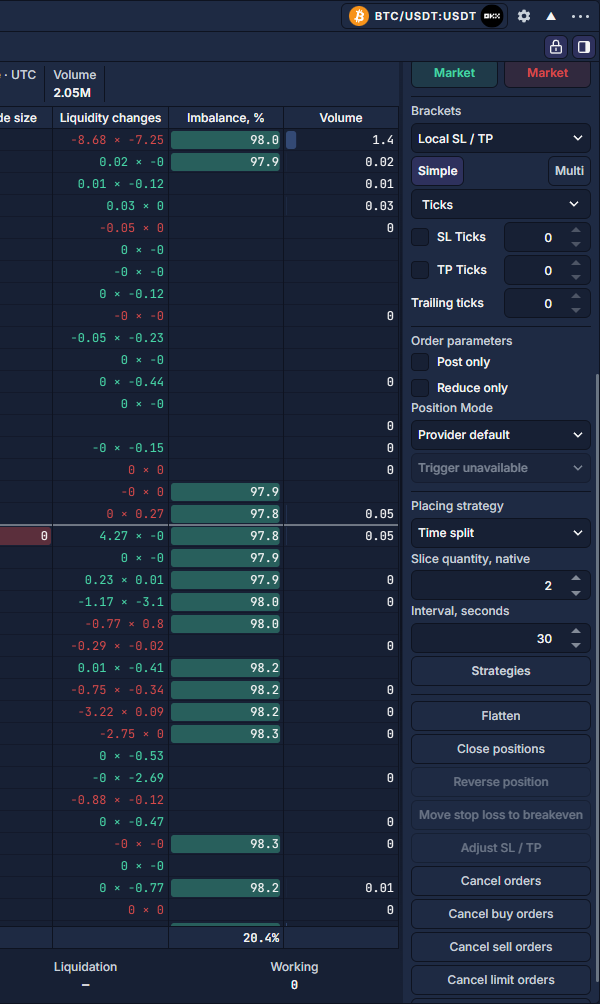
Choose a placing strategy
The Placing strategy section is below Order parameters; scroll inside the sidebar to reach it. These options manage execution, not trading signals. Stop entries cannot be combined with another placing strategy. Limit-if-touched and iceberg require a limit price.
Monitor and stop local execution
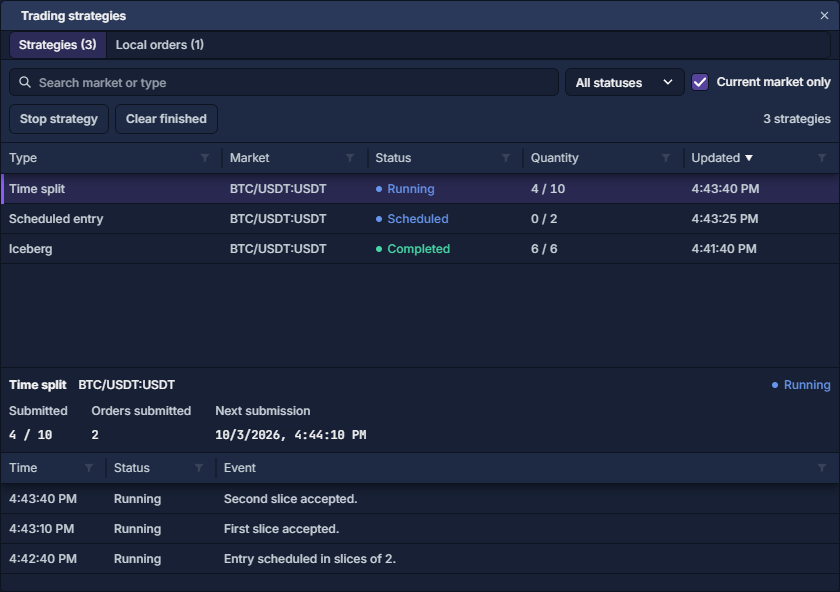
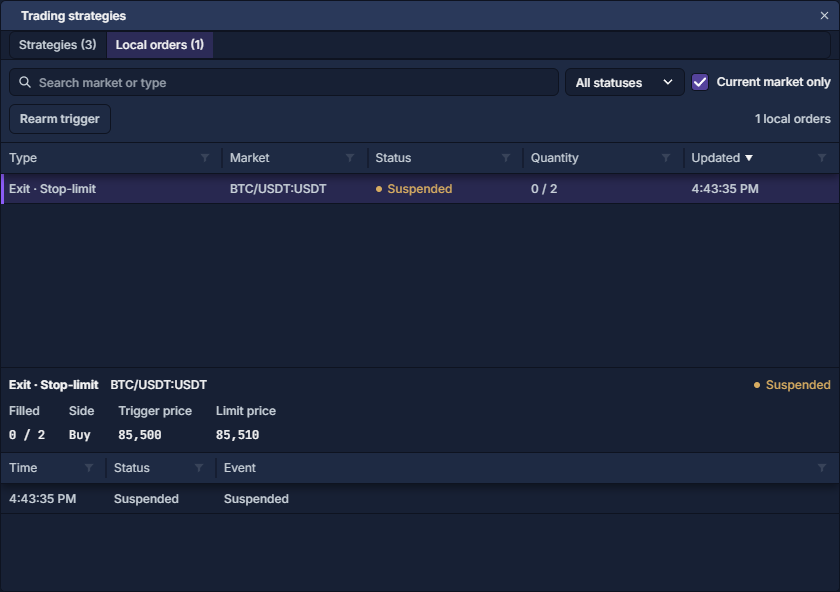
Click Strategies beneath the strategy selector. The manager has Strategies and Local orders tabs, a market/type search, status filter and Current market only checkbox. Select a row to read its events and next submission. Clearing the market-only checkbox includes other markets in the same connection.
In this simulated example, Time split shows 4 / 10 submitted, with two orders submitted. Submitted quantity is not confirmed filled quantity; inspect Orders: quantities, status and cancellation and Trade History: executions and fees for execution. Stop strategy stops further entry submissions; it does not close an already filled position.
Clear finished removes only finished, safely clearable jobs in the selected scope. A restored standalone local trigger can appear Suspended: select it in Local orders and use Rearm trigger after checking its price and side. Strategy-owned restored protection cannot simply be rearmed; cancel it and prepare a new protected entry. Local strategies do not silently restart after the session ends.
Position and cancellation buttons
Open the host panel’s header gear to arrange the sidebar: DOMTrader → Order Entry, SmartDOM → Trading, or Chart’s Order entry section. Configure compact/no-label layout, default amount, reset-after-placement, presets, visible controls and actions. Hiding a section does not disable its saved options. The ladder padlock only controls ladder mouse actions; explicit sidebar buttons and separately enabled keyboard trading remain separate.
Save reusable order choices with the Order template control at the top; Reuse panel settings explains the distinction from panel layouts.
Order Entry: prepare and review a ticket · DOMTrader: read and use the price ladder · SmartDOM: footprint, tape and depth · Paper trading: practice a cash-account workflow