Watchlist
Build and arrange a list of instruments you follow.
Watchlist keeps the quotes for your chosen instruments together. Cards work well for a quick scan; the table makes it easier to compare the same field across several markets.
Add instruments and choose a view
- Open PANELS → Watchlist. Click the + button at the upper left of the panel, below its title.
- Search in Add symbols. Check the provider and market type before selecting a result: a spot listing and a perpetual contract are different instruments.
- Select the other instruments you want, then click outside the picker to close it. Selecting an already selected listing removes it from the selection.
- Use ⊞ beside the plus button for cards, or ☰ for the table.
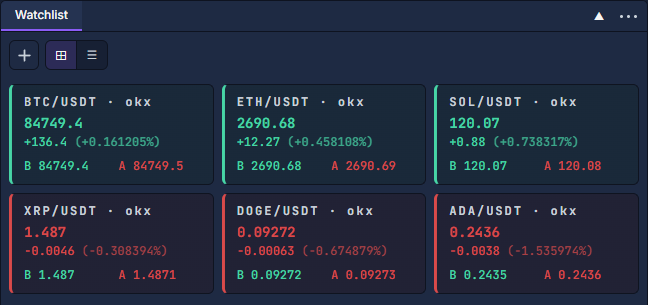
Each card shows the symbol, provider, last traded price, absolute and percentage change, and the best Bid and Ask. The change period comes from the provider's quote. Bid and ask describe the current quotes; the last price describes the latest reported execution.
Compare and arrange
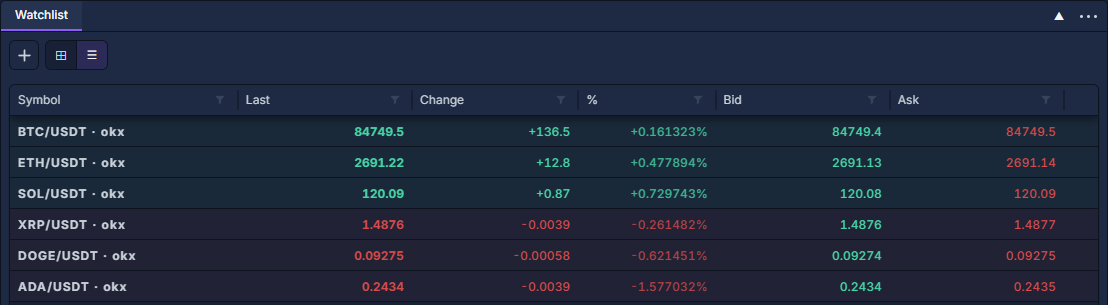
Click % to sort the percentage changes; click it again to reverse the order. Use the small funnel beside a column heading to filter that field. For example, a percentage filter above zero leaves the instruments reporting a positive change. Clear the filter to restore the other rows. See Work with data grids for the filter controls and column layout.
Drag a card or row to change the saved manual order. An active table sort takes precedence over that order; clear the sort to see your manual arrangement again. Use the instrument's × control to remove it.
Open a related panel
Right-click a card or table row, then choose Open chart, Open orderbook, or Show symbol info. The action carries that listing into the new panel, avoiding a second symbol search.
The same menu offers order preparation and alert creation. Double-clicking a card or row opens order preparation, so use the context menu when your aim is to inspect a chart. Review the instrument, account and quantity in any resulting ticket before submitting.
Select and link instruments · Chart: navigation, controls and settings · Alerts