Keyboard controls
Navigate controls and configure shortcuts for your workflow.
Shortcuts are configurable. The current assignments in Settings are the reference for your own workspace.
Review or change an assignment
- Click the application gear at the upper right → Hotkeys.
- Select Global or the required panel tab, then use Search actions to find a command.
- Click Edit beside it and press the new combination. Escape cancels recording; browser-reserved combinations cannot be assigned.
- If a conflict appears, choose Cancel, Swap, or Replace where available. Check the displayed assignment after it saves.
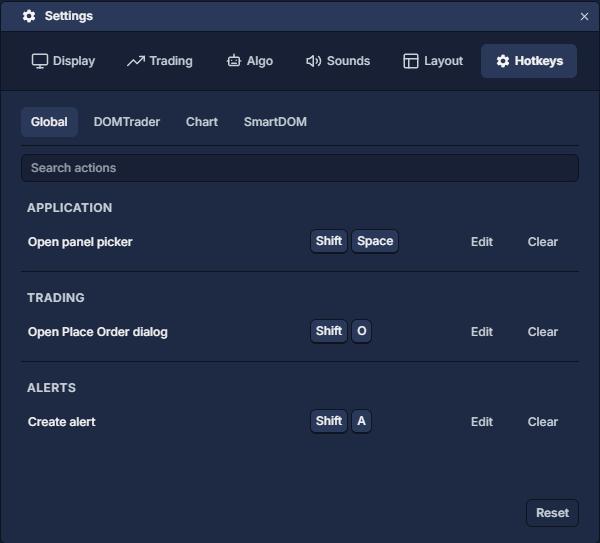
Clear removes an optional assignment. Reset at the bottom restores defaults for the selected scope. Required bindings cannot be cleared or replaced by a conflicting action.
In the illustrated defaults, Shift+Space opens the panel picker, Shift+O opens the Place Order dialog and Shift+A creates an alert. Opening a dialog does not submit an order.
Focus and trading controls
Use Tab to move focus, Enter / Space to activate a focused button, and Escape to leave a menu or active chart drawing operation.
For panels offering keyboard trading, right-click the panel title strip → Keyboard trading to enable or disable it. First check the panel's instrument, account, quantity and confirmation settings. Focus the intended panel before a trading shortcut. A ladder's mouse lock and keyboard-trading switch govern different inputs.
Application settings · DOMTrader: read and use the price ladder · Order Entry: prepare and review a ticket