Symbol Info
Inspect a listing's identity, contract details, and trading preferences.
Symbol Info presents the identity, trading specifications and current session quote for one listing. Use it to distinguish similarly named instruments and check price and quantity constraints before preparing an order.
Inspect a listing
- Open PANELS → Symbol Info, or right-click an instrument in Watchlist and choose Show symbol info.
- Click the symbol in the panel header to choose the provider-specific listing.
- Read General, Trading info and Session. Click a section heading to collapse or expand it; scroll to the lower fields.
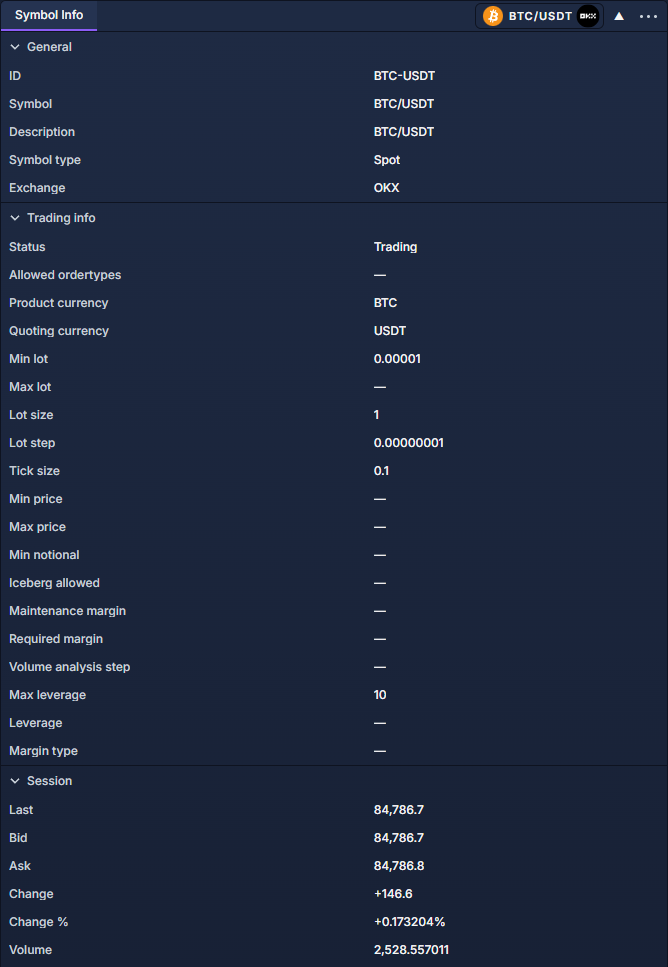
Check the important fields
A dash means the available definition does not supply that value. It does not mean zero, unlimited quantity or permission to use an order type. Check the provider's order rules when a required constraint is absent.
Session shows last price, bid, ask, change, percentage change and volume. Expiry and days remaining appear for definitions with an expiry. The provider determines the quote's change period.
Trading preferences
When the connection supports editing them, Leverage and Margin type are account controls in Trading info. Enter leverage and press Enter, or leave the field, to apply it; Escape abandons the edit. Choosing Cross or Isolated applies the margin-mode change immediately.
These controls change account preferences. They are separate from the read-only specification rows. Check the listing and account before editing, then read back the resulting value. There is no generic table-settings dialog for this property view.
Select and link instruments · Order Entry: prepare and review a ticket