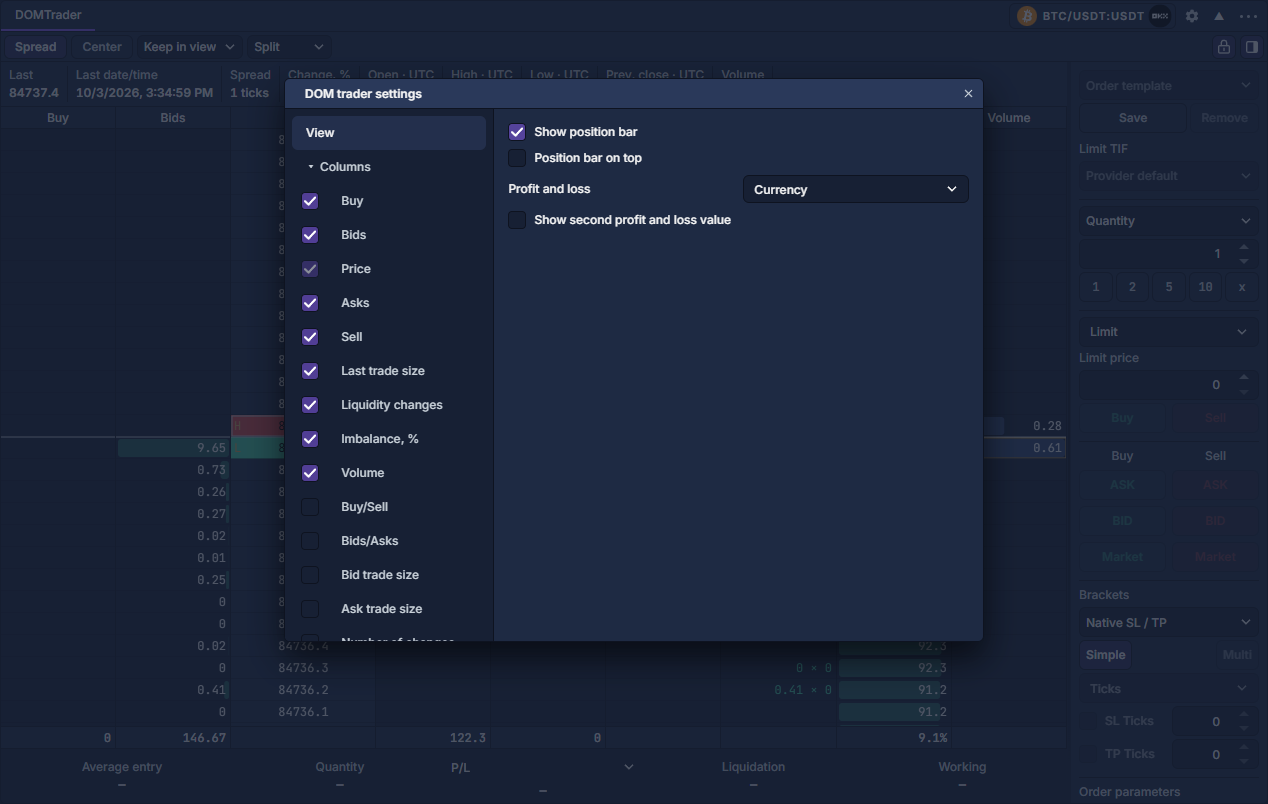
Open the gear beside the instrument in the DOMTrader panel header. Settings has six sections: View, Columns, Order Entry, VWAP, Position bar and Hotkeys. Changes update this panel; use Reuse panel settings to reuse a configuration.
View: geometry and readability
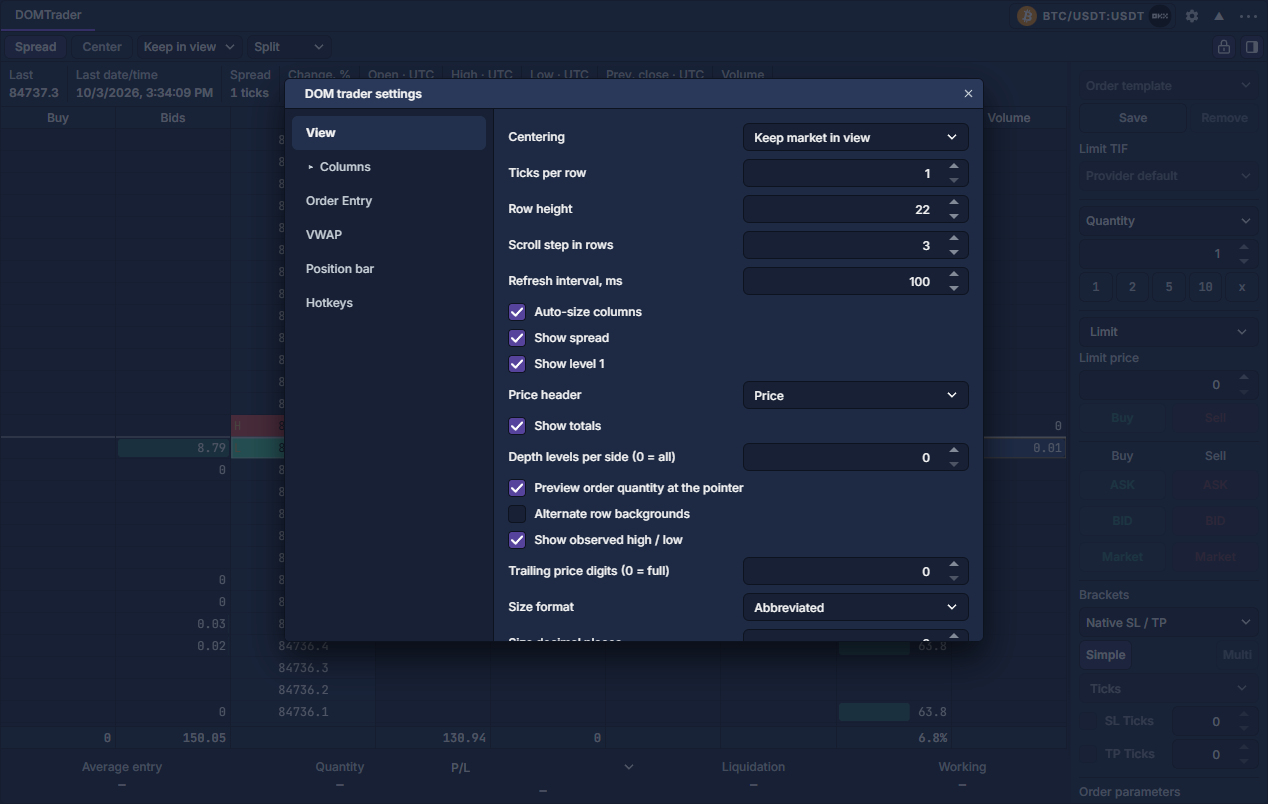
| Control | What it changes |
|---|---|
| Centering | Manual leaves the price range where you put it; Keep market in view recenters when needed; Always center follows the market. Center in the toolbar performs a one-time recenter. |
| Ticks per row | Number of native price ticks combined in a row. With a 0.1 tick, 10 ticks gives a 1.0 price step. Ctrl+wheel changes this quickly. |
| Row height / Scroll step | Row height sets vertical spacing; scroll step sets how many rows one scroll movement advances. |
| Refresh interval, ms | Visual update interval. A larger value paints less often; it does not change the meaning of the book quantities. |
| Auto-size columns | Fit columns to panel width. Turn it off to use manually chosen widths. |
| Show spread / Show level 1 / Show totals | Show empty prices between best quotes, the top quote strip, and bottom column totals. |
| Price header | Display the normal Price label, last price, spread in ticks, percentage change or UTC day range in the price heading. |
| Depth levels per side | Limit displayed depth on each side. Zero means all available levels, not unlimited exchange depth. |
| Preview order quantity | Show the configured order quantity at the pointer before a ladder action. |
| Alternate rows / Observed high–low | Alternate row backgrounds and mark the high/low of retained observed trades. |
| Trailing price digits | Shorten displayed prices to their trailing digits. Zero keeps full prices; orders still use the full valid row price. |
| Size format / Decimal places | Choose normal, rounded or abbreviated quantities and their displayed precision. |
| Quantity display | Show base or quote quantities. This display unit is separate from the sidebar's order-quantity unit. |
| Reset liquidity after seconds / price movement | Automatically reset change measurements after the configured time or native-tick distance. Zero disables the corresponding trigger. |
Columns: style and emphasis
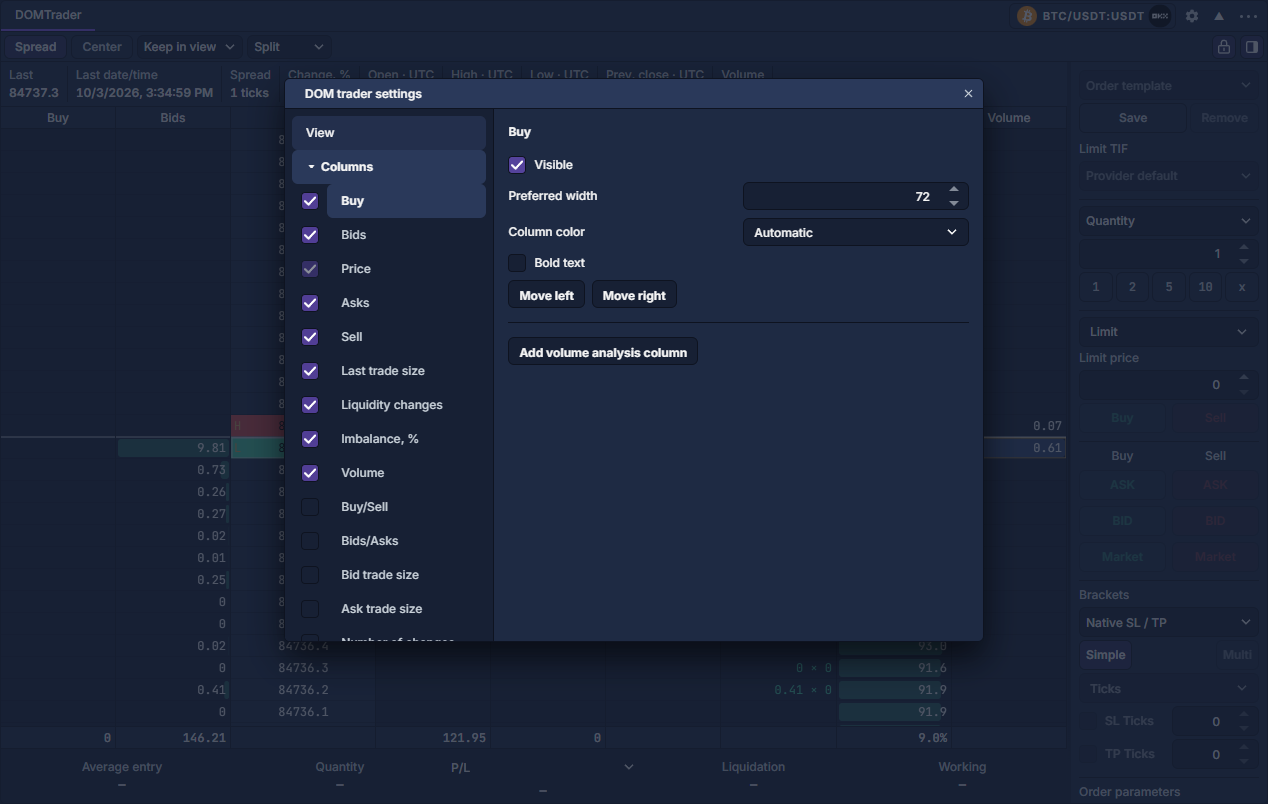
Select a column in the expandable list on the left. Visible shows or hides it; Price remains visible. Set preferred width, color and bold text. Numeric analysis columns also offer histogram/gradient/text styles, full-row fill and up to four highlight thresholds. Move left/right changes its order. Additional copies can be removed while keeping the required column kind. DOMTrader columns and volume profiles covers metrics, intervals and resets.
Order Entry: defaults and visible controls
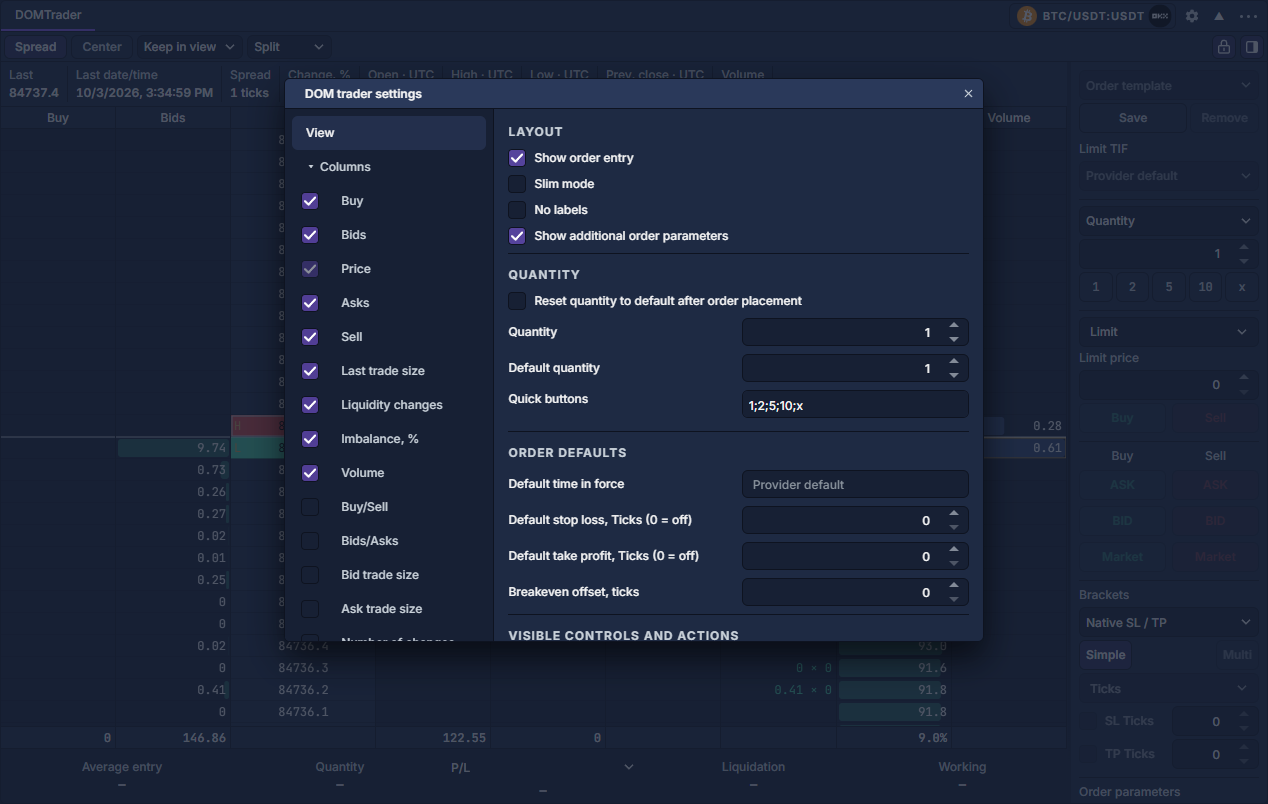
Show order entry, Slim mode, No labels and Show additional order parameters arrange the sidebar. Quantity, default quantity and reset-after-placement control sizing. Quick buttons accepts semicolon-separated buttons and newlines for rows, for example 1;2;5;10 and +1;*2;/2;x. The first row sets quantities; the second adjusts them, and x restores the default.
Set default TIF, SL/TP values in the chosen protection unit, and breakeven offset. The control/action checkboxes choose which sections and buttons remain visible. Hiding a control does not disable an already saved order option. Review the complete order in its confirmation. Order Entry: prepare and review a ticket explains the financial effect of these settings.
VWAP and Position bar
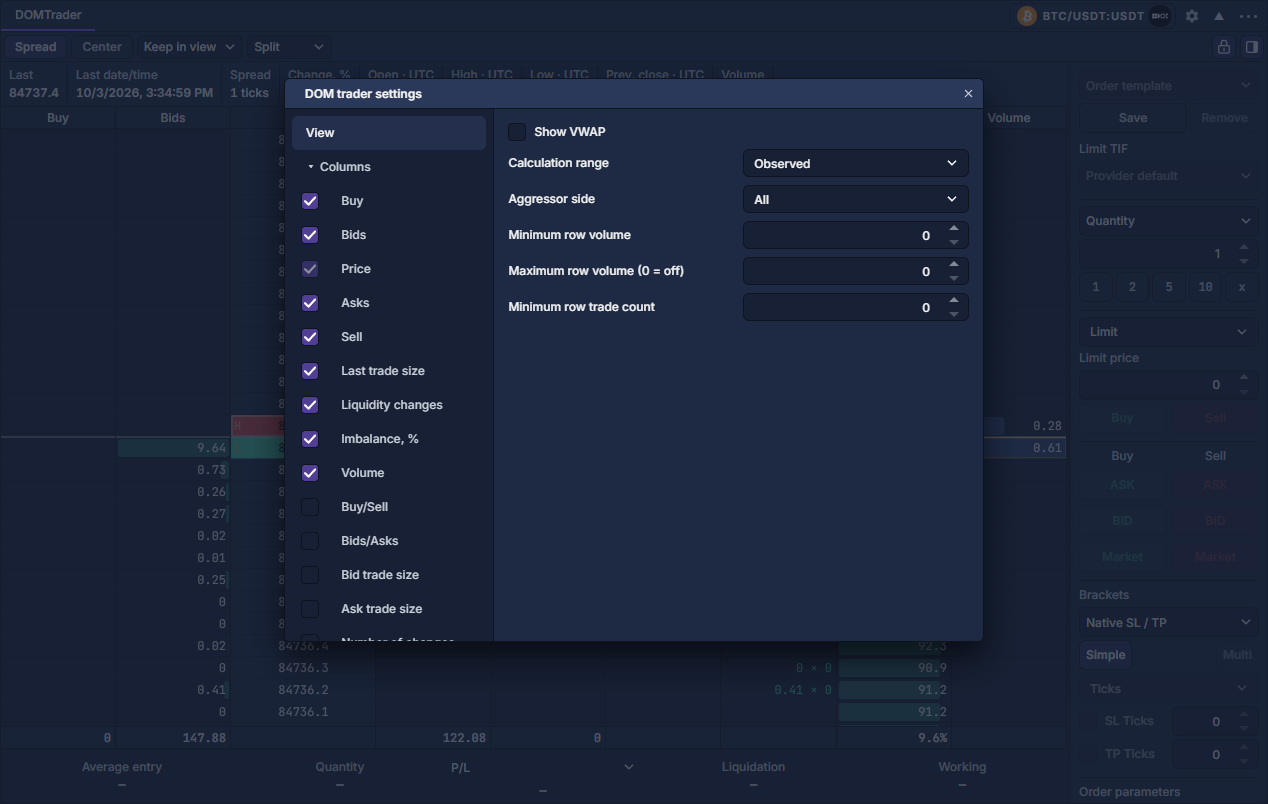
Enable Show VWAP and choose its calculation interval and row filters. VWAP weights prices by base quantity even when the ladder displays quote amounts. Observed, rolling, day/session and custom intervals follow the same controls as DOMTrader columns and volume profiles.
Show position bar controls the summary below the ladder; Position bar on top moves it above. Choose currency, ticks or percent for P/L and optionally enable a second independent P/L value. Currency and percentage are provider-reported. Tick movement is signed entry-to-mark price movement and excludes fees and quantity.
Hotkeys and templates
Hotkeys opens the panel's shortcut settings. Keyboard trading also requires the application's trading-shortcut gate; the ladder mouse lock is separate. After arranging the panel, right-click its title/header → Templates to save or apply the setup. Applying a panel template locks ladder mouse trading again. Keyboard controls · Reuse panel settings · DOMTrader: read and use the price ladder
Set up a compact ladder
- Open the panel-header gear → View. Set ticks per row and row height until both sides of the spread are readable.
- Expand Columns, select an analysis column and turn on Visible. Set its width and choose text, histogram or gradient display where offered.
- Open Order Entry and show the sidebar. Set quantity presets and the desired control visibility; review saved order options even when their controls are hidden.
- Close the dialog, inspect the result on the actual ladder, then save the layout with Reuse panel settings.