Positions: inspect and close an open holding
Read quantity, entry, current price and P/L, identify the account, and prepare a close.
Positions lists current holdings across the available trading connections. It answers what is still open. Orders: quantities, status and cancellation shows working instructions, while Trade History: executions and fees shows fills that have already happened.
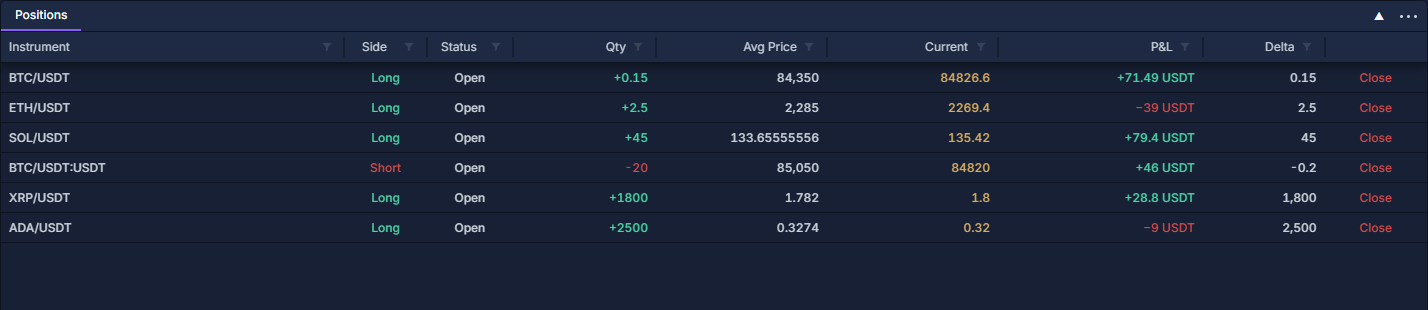
This is a simulated paper-account example with six positions, including a short derivative and both positive and negative results.
Find the holding
- Click PANELS → Positions. Use Connect a provider or Paper trading: practice a cash-account workflow to make an account available.
- Read Instrument, Side, Status and Qty together. A symbol can appear in more than one account or market.
- Right-click any column heading and choose Change columns…. Enable Connection name, Provider and Position ID when identity is important.
- Click the filter beside Instrument or Side to isolate the intended rows. Work with data grids shows the filter and how to clear it.
- Sort P&L to compare results, or return to instrument sorting for a stable list.
Read the default columns
For the BTC spot row, +0.15 indicates a long holding. The short BTC derivative row shows −20 contracts; it is not a short position of 20 BTC. Reveal Contract size to interpret its amount.
Current and P/L can update from different account and quote observations. Display rounding is not a new trade or a change to the position's quantity.
Prepare a closing order
- Identify the row and check account, instrument, side and amount.
- Click Close at its far right. If the action is outside the visible width, scroll horizontally or hide columns through the header menu.
- The order draft uses the opposite side, the absolute position quantity, the position's account, and Reduce only. It retains the position-side information where supplied.
- Review the order type, price, quantity and account in the ticket. Follow Order Entry: prepare and review a ticket to submit deliberately or close the ticket to abandon the draft.
- After execution, check the remaining quantity in Positions and the fills in Trade History: executions and fees. A partial fill can leave part of the position open.
Additional detail and exports
The column chooser also offers entry/close prices, open/remaining/closed amounts, realized and unrealized P/L variants, leverage, contract and currency fields, fees, related order IDs and timestamps. Only fields actually supplied for the position can contain a value.
Save a useful column layout with Reuse panel settings. Export the filtered, visible columns from the header menu. Use Portfolio: currency totals and open positions for currency totals and PnL History: understand a closed result for results matched to completed executions.