API keys and storage
Keep account access under your control and understand saved credentials.
Use a dedicated provider API key so you can review and revoke the terminal's access independently.
Prepare and enter a key
- Open your provider's API or security settings and create a key for the tasks you need.
- Use read-only permissions for account viewing; enable trading only if required. Keep withdrawal permission disabled and apply the provider's available access restrictions.
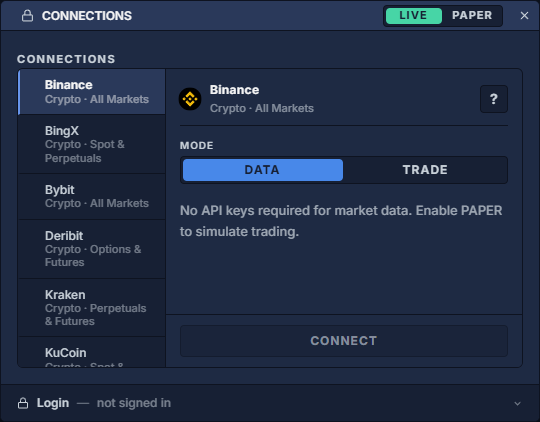
- In the terminal, click the upper-right person icon → Connections and select the provider. Enter each value in its designated credential field.
- Store your recovery information securely. Keep keys out of panel names, layouts, scripts and screenshots.
Understand saved access
The desktop application uses the operating system's protected credential storage. In a browser, the local vault encrypts credentials with a separate vault passphrase of at least 12 characters. Keep that passphrase in your password manager; it is different from your terminal account password.
Ordinary settings and layout exports exclude provider credential fields. Provider connection services use the saved credentials for authorized requests. Clearing browser application data removes its local settings and saved vault.
Replace or revoke a key
Revoke an unused or exposed key in the provider's own account settings, then replace it in Connections, reconnect and check the intended account. Disconnecting the terminal does not revoke the key.
Before sharing a capture, check for visible account identifiers and personal information. Assistant workspaces explains what workspace context is sent to an AI provider.