Application settings
Locate the application gear and understand Display, Trading, Algo, Sounds, Layout and Hotkeys.
Application settings control the terminal's general preferences. Click the gear at the right of the main top bar to open them. The gear inside a panel header controls only that tool; see Add and organize panels for that separate entry point.

- Click the main top-bar gear.
- Choose a tab across the top of the dialog: Display, Trading, Algo, Sounds, Layout, or Hotkeys.
- Change the required control. General preference controls update as you change them; there is no final Apply button in this dialog.
- Scroll within the dialog to reach lower options. Close it with the × in its upper-right corner.
Display: theme, text, numbers and pointer
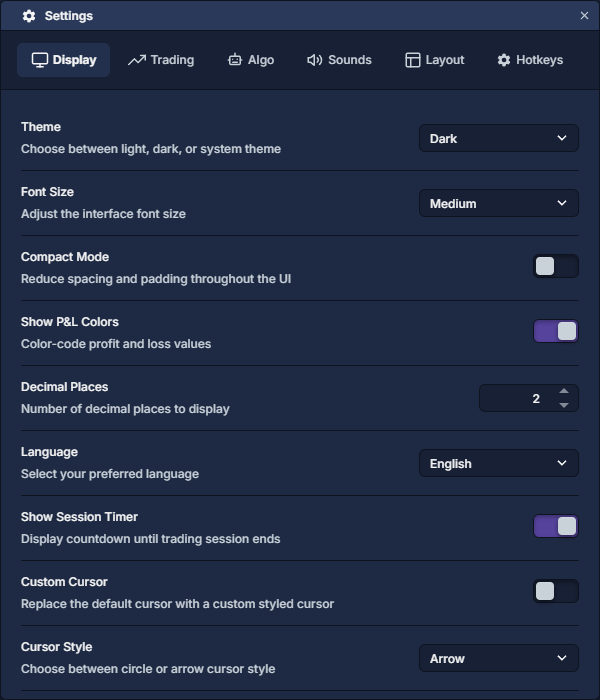
For the appearance used in this manual, choose Dark, Medium, and English. Check a populated table after changing text size, because long instrument names still need enough column width.
Trading: initial quantity and confirmations
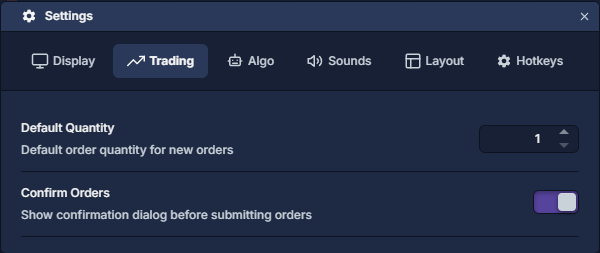
Default Quantity supplies the general starting quantity for new order workflows. It is a quantity, not a cash budget. A trading panel may also have its own quantity preset or saved template, so review the actual ticket before submission.
Confirm Orders controls order confirmation dialogs. Leave it enabled while learning order placement so you can review the selected account, instrument, side, quantity, and price. It does not turn a live account into a paper account; Paper trading: practice a cash-account workflow covers that separate choice.
Algo: permissions for imported scripts
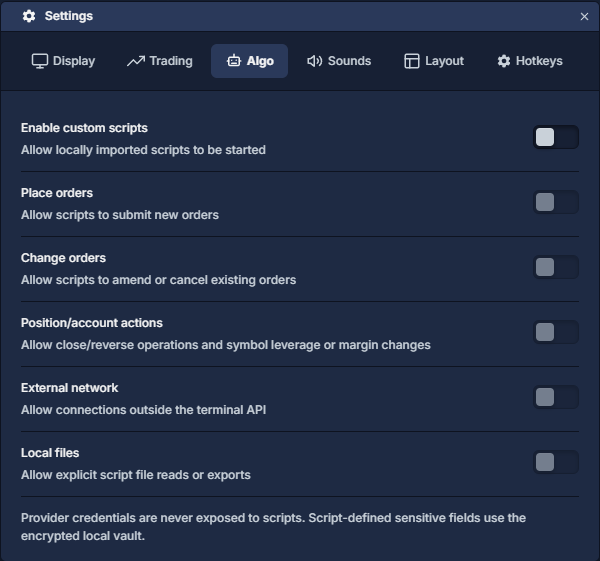
Enable custom scripts allows locally imported scripts to start. The remaining switches grant distinct capabilities: Place orders permits new submissions; Change orders permits amendments and cancellations; Position/account actions permits close/reverse operations and leverage or margin changes; External network permits connections beyond the terminal API; Local files permits explicit file reads or exports.
Enable the capabilities required by the script you intend to run, then manage that script through Script and Script Manager. The settings panel states that provider credentials are not exposed to scripts; sensitive script-defined fields use the encrypted local vault.
Sounds: match events to audio
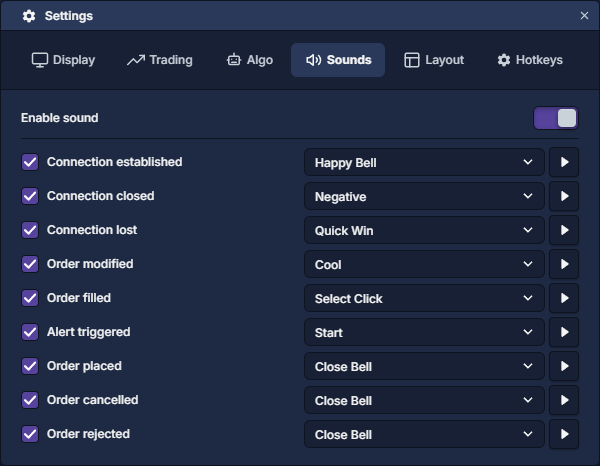
Use Enable sound as the master switch. Each event has a sound selector: connection established, connection closed, connection lost, order modified, order filled, alert triggered, order placed, order cancelled, and order rejected. Choose distinguishable sounds for events you need to recognize. The alert condition itself is configured in Alerts, not in the sound selector.
Layout: persistence and appearance

Save Layout on Exit and Restore Layout on Start are the layout save/restore preferences. Panel Opacity ranges from 0 to 100%; higher values make panels more opaque. Enable Animations controls interface transitions. Workspace organization and named arrangements are covered in Workspaces and layouts.
Hotkeys: review before assigning
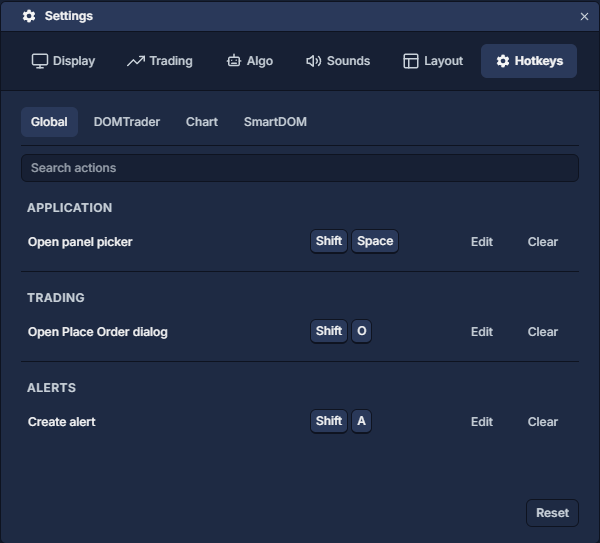
Select Global, DOMTrader, Chart, or SmartDOM to inspect that scope. Each action shows its current binding with Edit and Clear. Edit records a replacement gesture; Clear removes the assignment. Reset restores the selected scope's default assignments. Keyboard controls explains recording, conflicts, and the distinction between global and panel-specific trading controls.
Order Entry: prepare and review a ticket · API keys and storage · Reuse panel settings