DOMTrader: read and use the price ladder
Locate the ladder controls, interpret bid and ask depth, and prepare price-level orders.
DOMTrader aligns resting depth, recent executions, analytics and working orders on one price ladder. Its order-entry sidebar uses the same instrument as the panel header. This screenshot combines live market depth with an illustrative simulated account; no order was submitted.
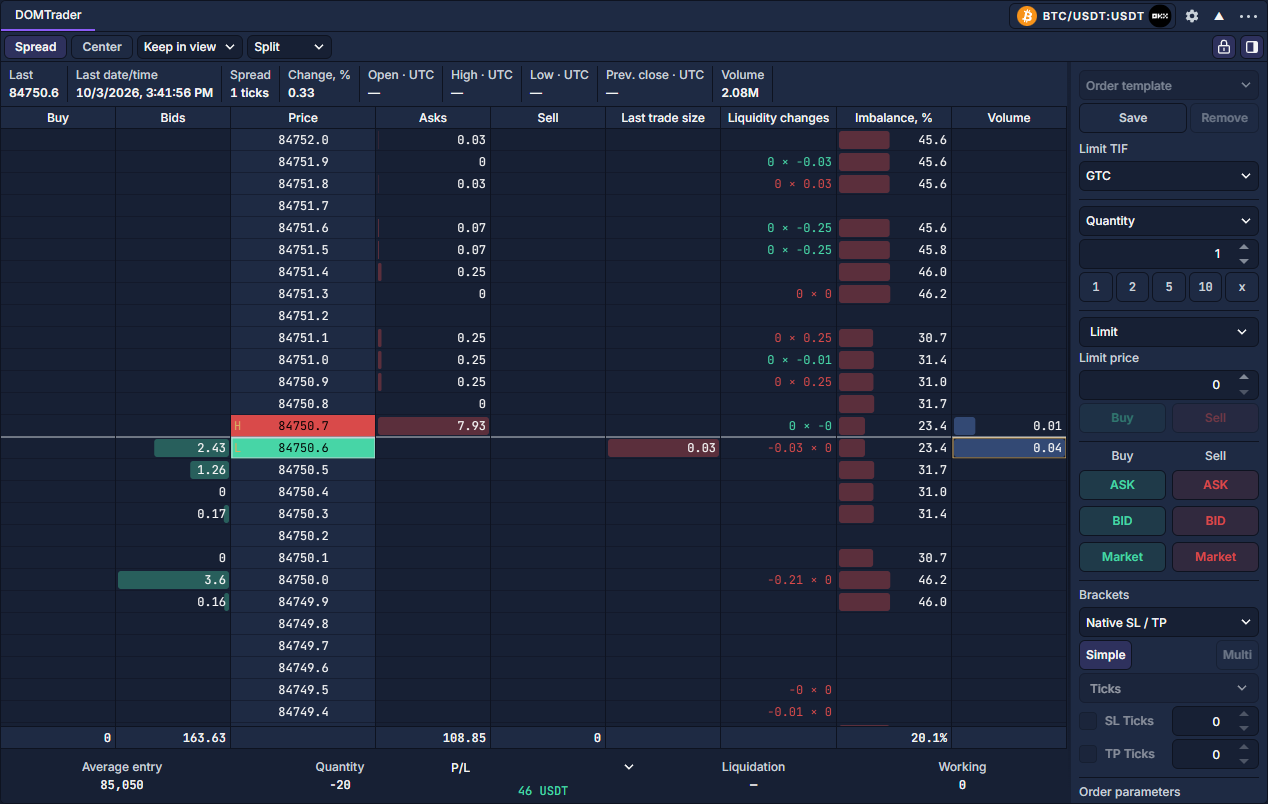
Open and locate the controls
- Click PANELS → DOMTrader, then choose the instrument in the panel header. Add and organize panels and Select and link instruments show these entry controls.
- The second row contains Spread, Center, the centering mode and Split / Combined depth layout. At its right are the padlock for ladder mouse trading and the sidebar icon for order entry.
- The quote strip below reports Last, time, spread and available daily statistics. The central Price column aligns all price-level values.
- The gear in the panel header, beside the instrument, opens Settings. Start with View and Columns to set row aggregation and the information shown.
Read depth separately from executions
Bids and Asks are quantities currently resting in the book. Last trade size is executed activity. Liquidity changes records observed changes in resting size; a reduction alone cannot tell you whether an order was cancelled or traded. Volume is an execution profile for its selected period. The bottom totals and the row-by-row Imbalance, % use different scopes. DOMTrader columns and volume profiles explains these calculations and their controls.
Navigate and arrange the ladder
Scroll the ladder to browse prices. Ctrl+wheel changes ticks per row. Center restores the market position. Automatic centering pauses under the pointer and during gestures. Aggregated rows represent their displayed lower-bound native tick, not a midpoint. Order submission always uses that displayed valid price. Drag headers to reorder columns; the colored line marks the insertion edge. Drag header edges to resize.
Right-click a header, or focus it and press Shift+F10, to show columns, change profile metrics/ranges or reset analytics. Ordinary header clicks do not open menus. The lock icon toggles ladder mouse trading; the right-menu icon shows or hides order entry. All columns can coexist. Profiles can be added independently in Settings. Depth levels limits displayed levels per side without dropping model ingestion. The order summaries mark orders outside the viewport with up/down counts.
Quantity preview is independently configurable.
Prepare a price-level order
- Practice through Paper trading: practice a cash-account workflow on a supported instrument. Keep the padlock closed while arranging the display.
- Show the sidebar with the icon beside the padlock. Set quantity and its unit, time in force, order type and any protection. Order Entry: prepare and review a ticket explains each field.
- Review the connection associated with the selected listing. When ready, unlock ladder mouse trading and click the intended Buy or Sell cell at the displayed price.
- Review the order confirmation when enabled. Check account, side, quantity, price and flags, then follow the result in Orders: quantities, status and cancellation. Lock ladder mouse trading again after the exercise.
Order actions and position controls
Unlock the ladder, then left-click Buy or Sell to submit a limit at the displayed row price. Hold Shift for a stop-market order using the selected exchange/local stop execution. In Buy/Sell combined mode, rows at/below the bid buy and rows at/above the ask sell; use split columns for ambiguous spread prices. Stop placement reverses combined-column inference: a buy stop is above the ask and a sell stop below the bid.
Right-click an existing order cell to cancel matching orders at that displayed level. Multiple orders at the same level are canceled together. Drag working orders to amend their captured native prices; stop-limit distance is preserved. Provider capability and unchanged order baselines are checked before dispatch. Breakeven creates or moves supported native position protection, or amends a classified existing stop to the entry rounded in the protective direction plus the configured offset.
Adjust SL/TP modifies provider-identified working exits or supported full-position native protection.
Close Positions sends reduce-only market closes for a refreshed account snapshot. Flatten first cancels working orders, waits for confirmation, refreshes positions and then closes. Reverse requires a single authoritative one-way position and submits an opposite market order for twice its size. Requested, accepted, rejected and uncertain results are different; the position is not treated as closed merely because a request succeeded.
Hidden panels retain their required subscriptions and calculations.
Settings and reusable layouts
The ladder mouse lock does not disable explicit sidebar actions or separately enabled keyboard trading. DOMTrader settings explains display preferences, Order Entry: prepare and review a ticket covers protection and strategies, and Keyboard controls explains the keyboard-trading gate.