News Feed collects headlines from the available news sources. Read publication time and source together: a newly displayed item can describe an earlier event, and a headline is only a summary of the original article.
Open and read the feed
- Open PANELS → News Feed.
- Read Time, Headline, Symbols, Category and Source across a row. Symbol icons appear when the feed supplies associated instruments.
- Click the headline to open its summary, publication time and source. Use Open original article at… in that dialog to visit the publisher.
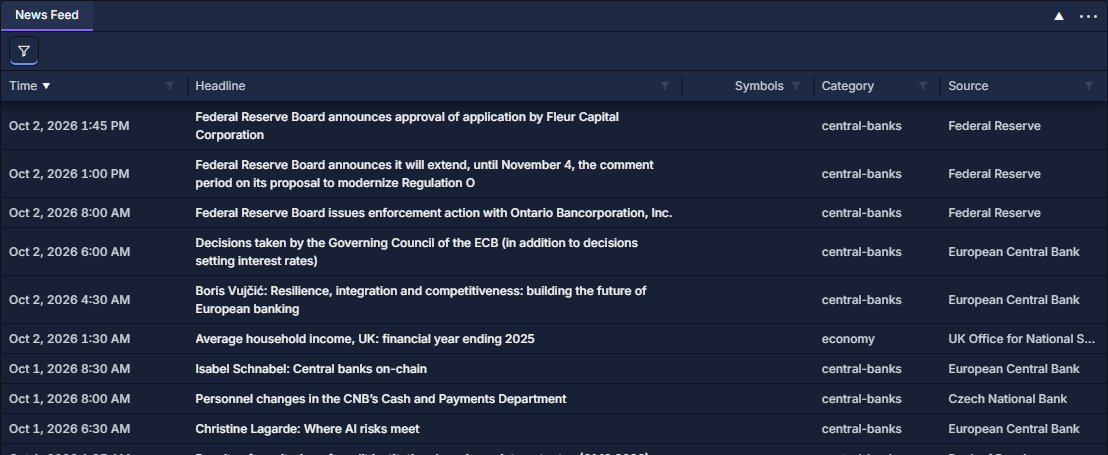
The default time sort puts newer publications first. A column's funnel filters the loaded table; clicking a column heading sorts it. Widen Headline or Source by dragging its header boundary when longer text is clipped. See Work with data grids.
Choose the news you want
Click the funnel at the upper left, below the panel title to open News filters.
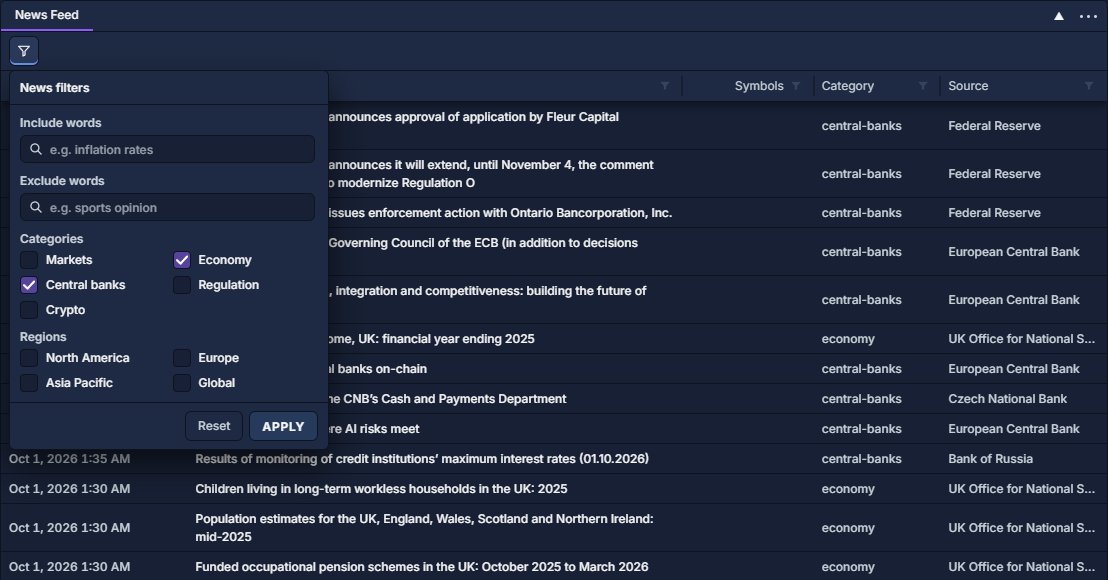
| Filter | Purpose |
|---|---|
| Include words | Search for relevant terms, such as inflation or rates. |
| Exclude words | Remove items matching topics you do not want. |
| Categories | Choose Markets, Economy, Central banks, Regulation or Crypto. |
| Regions | Choose North America, Europe, Asia Pacific or Global. |
For the illustrated view, select Economy and Central banks, then Apply. Leave the region group unrestricted to compare announcements across regions. Opening the popover again shows the applied choices; closing it without Apply leaves the feed unchanged.
To return to the default feed, choose Reset, then Apply. If results are still narrower than expected, also clear any filters in the table's column headers. These are separate controls.
Use Economic Calendar for scheduled releases and events, then return to News Feed to read the resulting announcements.