Ribbon
Build and read a compact quote strip with exchange icons.
Ribbon keeps selected quotes in a single horizontal strip. Use it for a few markets you want to see while working in another panel; use Watchlist when you need columns, sorting, or a larger collection.

Each item starts with the exchange icon, followed by the symbol, last price, and percentage change. The exchange is represented by its icon. There is no exchange or connection-name text appended to the symbol. Hover an icon to identify it.
The symbol includes the quoted currency: BTC/USDT is priced in USDT. An arrow and color show the direction of the reported change. A dash is an unavailable quote, not a price of zero. Compare listings from the same exchange when you want a consistent source.
Add the strip and choose its markets
- Click PANELS, below the main top bar and to the left of the workspace tabs. Search for Ribbon and click its name. See Add and organize panels for the illustrated picker.
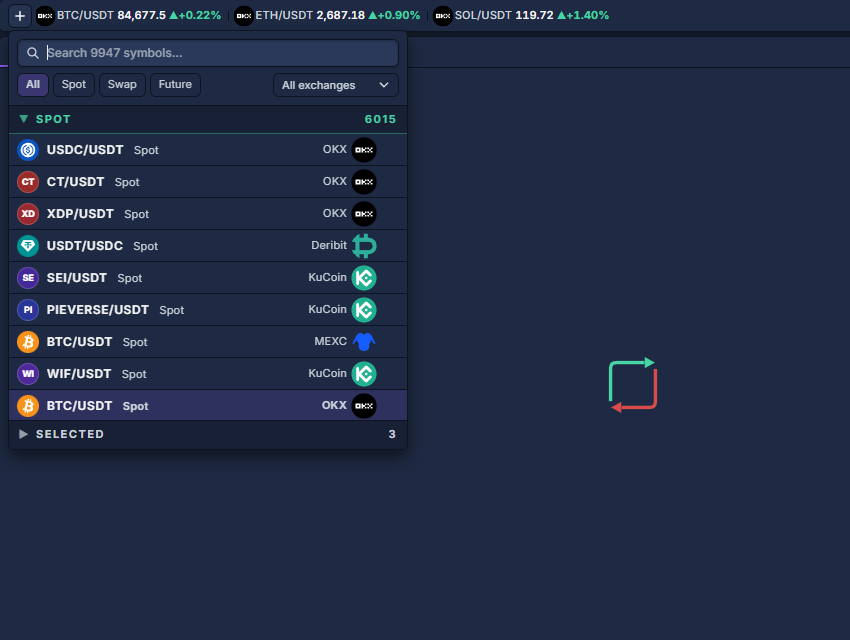
- Click the + at the far left of the Ribbon. Its tooltip is Add symbols….
- Type a symbol into the search field. The results show the instrument, market type, and exchange; choose the listing you actually want.
- Click a result to add it. Repeat for the other instruments. Use the market-type tabs and exchange selector to narrow similar results.
- Click outside the picker to return to the strip. Wait for the selected quotes to appear.
Change the selection and fit the strip
Reopen + to manage the selected instruments. The Selected section shows the current list; use the selection control for an item to remove it. Adding a symbol does not place an order.
Drag the panel boundary to give Ribbon a shallow horizontal area. When the items exceed its width, use the left and right scrolling controls at the strip's edges. Increasing the panel height does not create a table or additional rows.
Ribbon is a quote display. To study an instrument, add Chart through PANELS and choose that listing in the Chart header. Save a useful workspace arrangement as explained in Workspaces and layouts, and reuse panel preferences through Reuse panel settings.