Order Entry: prepare and review a ticket
Use the standalone Limit, Market and Conditional ticket, understand its fields, and inspect a confirmation.
Order Entry is the standalone ticket opened from PANELS → Order Entry. Choose the instrument in its panel header before entering an order. Trading uses that instrument’s selected connection; there is no independent account dropdown in this ticket. The screenshots show an illustrative simulated account and draft only; the final order was not submitted.
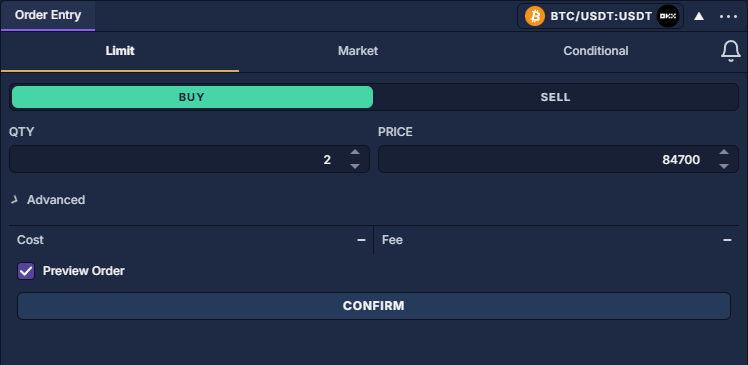
Prepare a limit order
- Choose Limit at the top, then BUY or SELL. A buy limit specifies the highest acceptable purchase price; a sell limit specifies the lowest acceptable sale price. Execution depends on the available market.
- Enter QTY in the instrument’s native order unit and PRICE on its valid tick increment. Do not interpret a derivative quantity as the same number of coins without checking contract metadata in Symbol Info. The example is a quantity of 2 at 84,700.
- Click the Advanced row directly below quantity and price. Review validity, flags and protection before collapsing it again. Hidden fields retain their saved settings.
- Keep Preview Order checked. Click the wide CONFIRM button below it to open the review dialog; with Preview Order disabled, this button submits immediately.
Choose the order type
Advanced fields
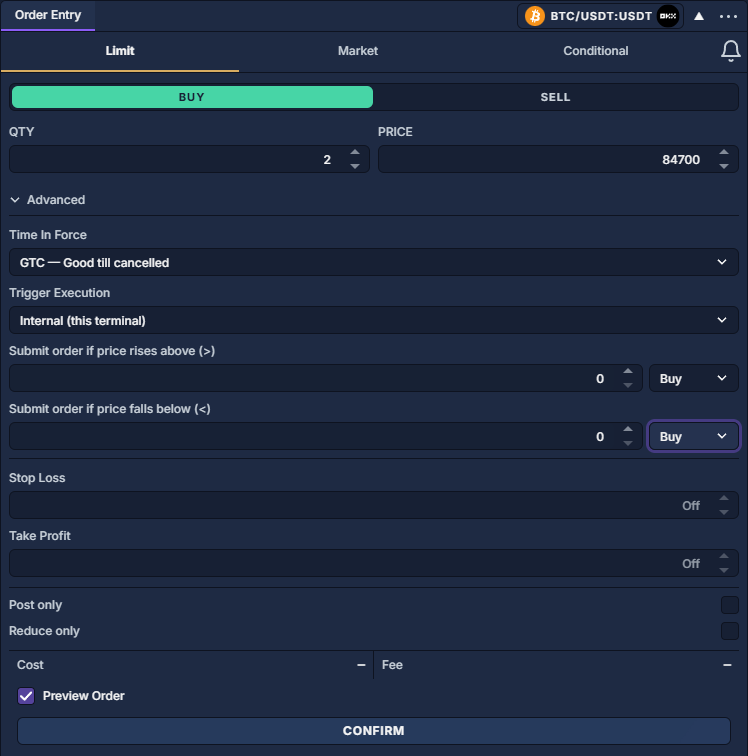
Cost is a notional estimate when the necessary price and contract metadata are available; Fee uses the available taker-fee metadata. Neither is a final fill statement. A dash means the estimate is unavailable, as in this screenshot, not zero cost or zero fee. Market tickets also leave these estimates blank.
Configure a conditional limit
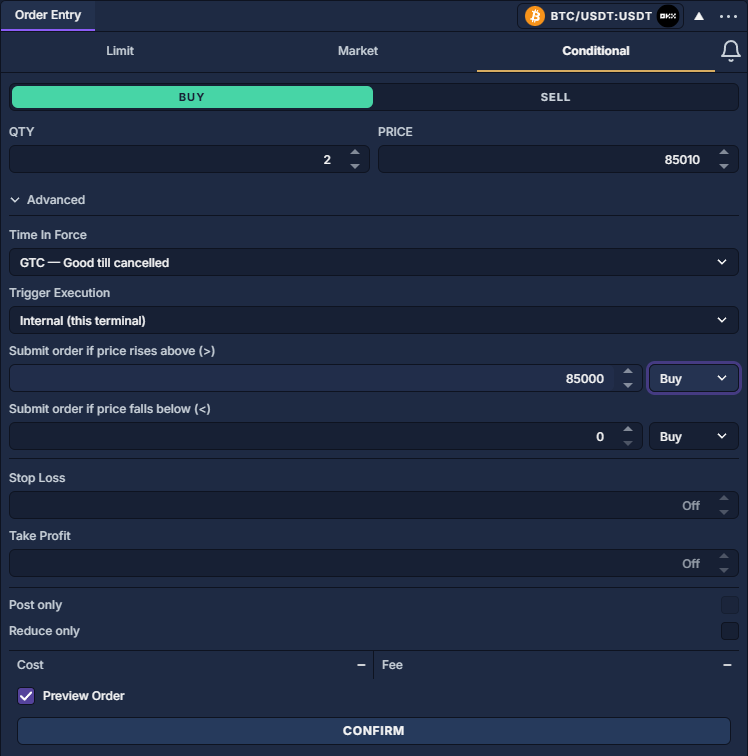
- Choose Conditional, open Advanced, and set QTY.
- For the illustrated upward trigger, enter 85,000 in “price rises above” and select Buy beside it. Leave the below field at 0.
- Set the ordinary PRICE field to 85,010. The trigger threshold and limit price serve different purposes: one activates the order, the other limits its purchase price. Reaching the trigger does not guarantee a fill.
- Choose local or supported exchange execution and the applicable trigger source. Review the draft with Preview Order. A local trigger restored after a restart needs explicit rearming; check Orders: quantities, status and cancellation and Trading sidebar: sizing, protection and strategies.
Read the confirmation and follow the result
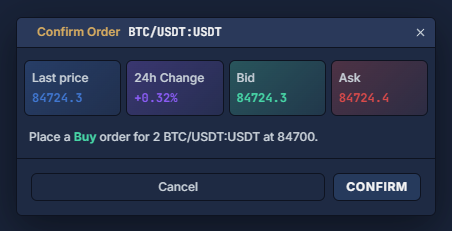
The dialog shows current quote context and the side, quantity, instrument and price of the prepared order. It does not repeat every advanced field, so review those on the ticket before opening it. Cancel closes the review without placing the order; the dialog’s final CONFIRM sends the prepared request.
After an actual submission, inspect Orders: quantities, status and cancellation for working quantity and status, Trade History: executions and fees for executions, and Positions: inspect and close an open holding for the resulting holdings. An accepted request is not the same as a fill, and a partially filled order can still have a cancellable remainder.
The bell at the right of the order-type tabs opens a price-alert editor; an alert is separate from a Conditional order. Alerts explains notifications. For quantity conversions, stop-market, brackets, execution strategies and position-management buttons, see Trading sidebar: sizing, protection and strategies. Practice only on a supported instrument in Paper trading: practice a cash-account workflow.