Select and link instruments
Choose a provider-specific instrument and synchronize related panels.
A symbol belongs to a provider-specific listing. BTC/USDT spot and a BTC perpetual contract are different instruments even when their names look similar.
Select a listing
- Click the instrument button in the panel header.
- Type the symbol in the search field. Choose a product chip, such as Spot or Swap, and an exchange in All exchanges to narrow results.
- Read the symbol, product type and provider on the result row. Select the required listing to load it into the panel.
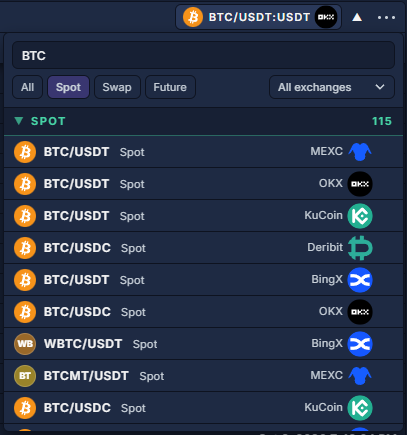
Clear the search and return the filters to All / All exchanges if a listing is missing. Click a category heading to expand its results. The star beside a row adds or removes a favorite; favorites are separate from the instruments already added to a Watchlist.
Link related panels
- Right-click the first panel's title strip, or click its … button, to open the header menu.
- Under Link by symbol, choose a color. Give the other panels the same color.
- Select another instrument in one member and check the headers of the linked panels.
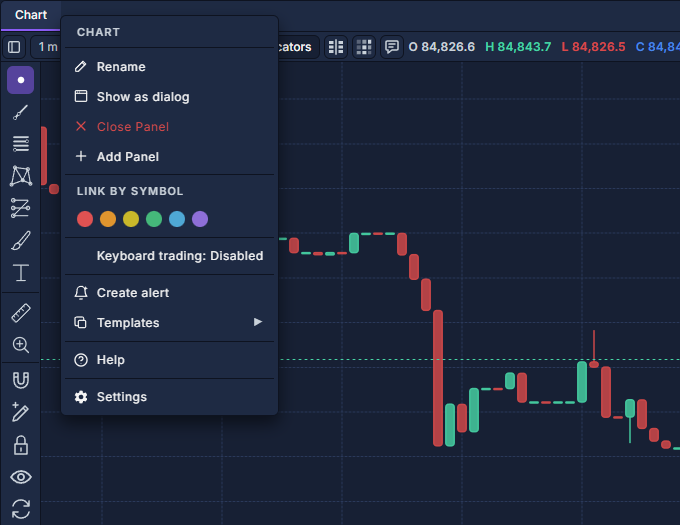
Use different colors for independent groups. To keep one panel independent, click Unlink beside the color row; it appears after a color is assigned. Watchlist and Ribbon have their own Add symbols controls for multiple listings; see Watchlist and Ribbon. Symbol Info explains trading specifications.