Orders: quantities, status and cancellation
Follow working and partially filled orders, show remaining quantity and cancel the correct row.
Orders shows submitted orders, their current status and the quantity already filled. It also includes local conditional orders. Use Trade History: executions and fees for the individual executions that an order produces.
The examples use a simulated paper account. No real orders were placed for these screenshots.
Open and arrange the table
- Click PANELS → Orders. The button and picker are illustrated in Add and organize panels.
- Right-click any column heading, then choose Change columns….
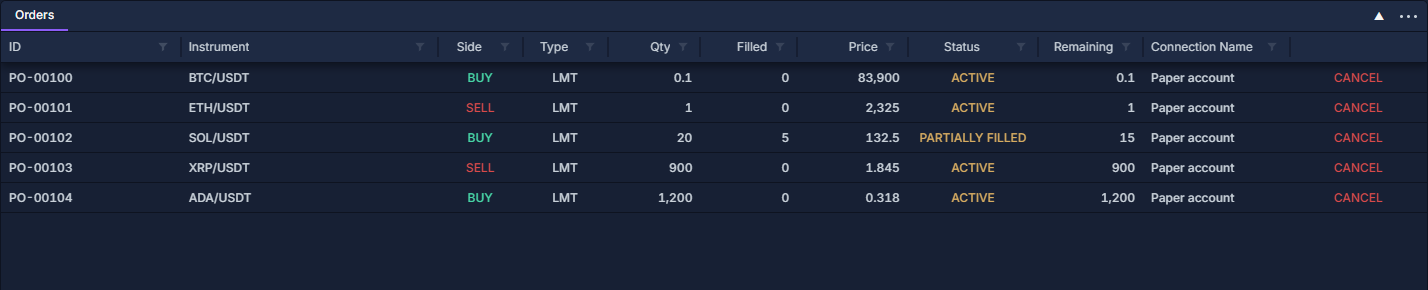
- Show Connection Name and Remaining alongside ID, Instrument, Side, Type, Qty, Filled, Price and Status. This produces the view above.
- Click a heading to sort. Use its filter to narrow the instrument, account or status; Work with data grids shows the filter and column controls.
The connection identifies the account. An order ID alone is not enough to distinguish orders on different accounts or markets.
Read an order
In the screenshot, PO-00102 is a SOL/USDT buy limit order for 20 SOL at 132.50. 5 SOL have filled and 15 SOL remain. The filled part already belongs to account activity; cancelling the rest does not undo those five SOL.
Cancel the remaining quantity
- Find the row by connection, instrument and ID.
- Check Filled and Remaining immediately before acting.
- Click CANCEL at the far right of an active or partially filled row.
- Follow the resulting status. A sent cancellation request is not proof that the venue has confirmed cancellation.
- Recheck Trade History: executions and fees and Positions: inspect and close an open holding if an execution occurred while the cancellation was in flight.
The row's control sends the cancellation request. This table does not provide an inline price editor or an amend command in a row menu. Use the relevant order-entry workflow when preparing a replacement, and verify the original order's outcome first.
Local conditional orders and extra fields
A local conditional order can wait in the terminal before an exchange order exists. Show Local, Local ID, Trigger, Trigger type, Trigger direction, OCO group and Comment to distinguish this state from an ordinary working exchange order.
A suspended local conditional order can expose Re-arm next to its cancellation control. Re-arming is a deliberate action on that conditional order; read its trigger and comment before using it. Order Entry: prepare and review a ticket explains conditional orders and their execution settings.
For derivatives, add Position side, Reduce only, Post only and Time in force where supplied. These fields help explain why otherwise similar orders behave differently. An empty optional field does not establish that a particular flag is false.
Export or investigate a missing order
Right-click a column heading to export the filtered view with its visible columns. Include account and order identity fields in a reconciliation export.
Clear filters before concluding that an order is absent. Confirm the intended connection and compare the order with its executions. A completed order and the open position it created are different records, shown in different panels.
Work with data grids · Order Entry: prepare and review a ticket · Trade History: executions and fees · Positions: inspect and close an open holding