Assistant workspaces
Ask questions about a workspace and manage the conversation.
Assistant workspaces are currently a development preview for entitled accounts, and are disabled in production builds. This page shows the preview's controls and an illustrative conversation. The example is not a response generated from a live account.
Open and configure the assistant
- In an eligible development session, right-click a workspace tab and choose Make AI tab. An assistant-enabled layout can also be selected from the + beside the workspace tabs.
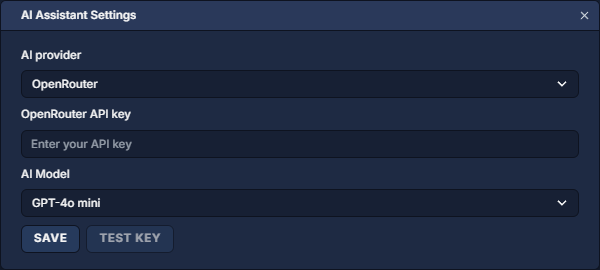
- In the conversation's bottom toolbar, click … (Chat actions) → AI Assistant Settings.
- Select the AI provider, enter its API key and choose an AI Model. Test key checks the entered or saved key; Save stores the selected configuration. An existing key can be removed with Remove key.
- Add the panels you want to discuss to that same workspace. See Workspaces and layouts and Add and organize panels for arranging them.
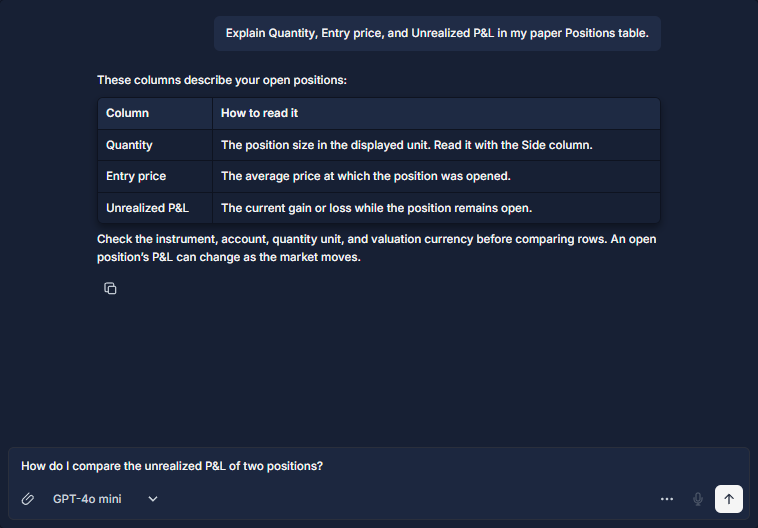
Ask a focused question
Name the instrument or panel and the comparison you need. For example: “Explain Quantity, Entry price, and Unrealized P&L in my paper Positions table.” Check that the relevant values are visible before sending.
Understand the context and conversation
The conversation uses available panel content from its own workspace tab. It does not inspect unrelated tabs. Loaded tables and displayed chart information can be limited to the content available for capture, so ask about a visible selection or period rather than assuming a complete account archive was included.
The selected AI provider receives the submitted question, applicable workspace context and explicit image attachments. Provider credentials are kept out of panel context. Choose what to include before sending and follow the relevant data-sharing permissions.
Use the copy icon below an answer to copy its text. … → Clear conversation clears the tab's discussion. Retry appears after a failed request and captures the workspace again. Check answers against the underlying panel values; use the terminal's own trading controls for order preparation and confirmation.
API keys and storage · Positions: inspect and close an open holding · Workspaces and layouts